Collections
Subcollections
Learn how to display subcollections on collection pages using metafields
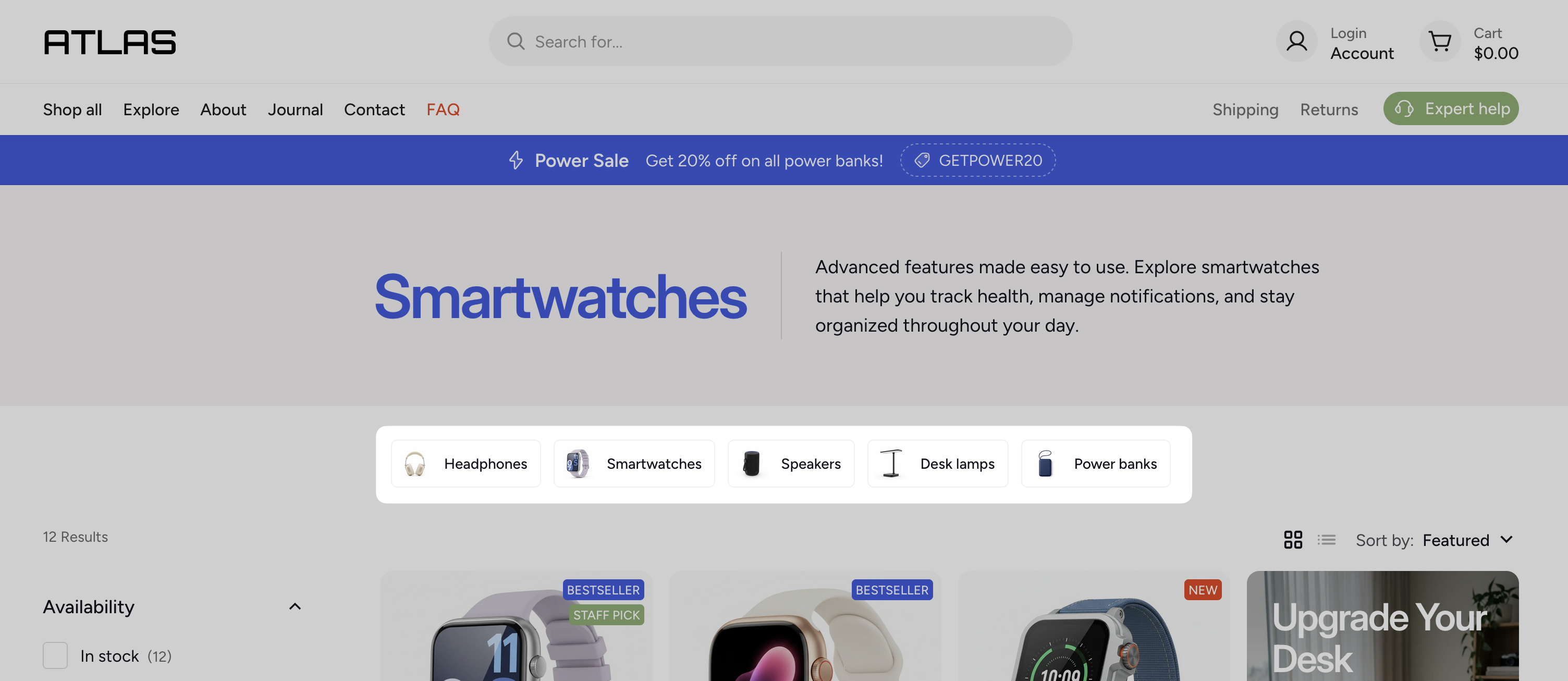
Subcollections let you display a row of child collections at the top of any collection page. Using a metafield-based approach, you can manage subcollections per collection without duplicating templates.
Setting up subcollections
Create a metafield definition
- In your Shopify admin, go to Settings > Metafields > Collections.
- Click Add definition and fill in the following fields:
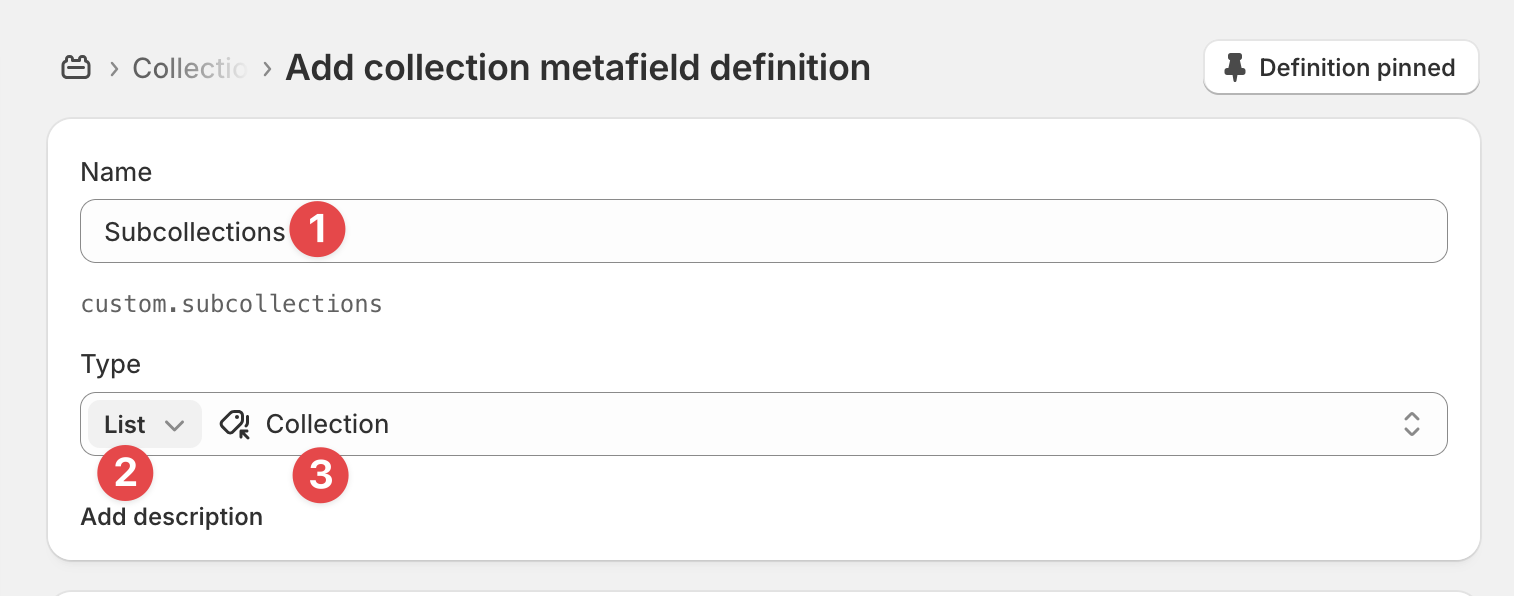
- Name —
Subcollections - Type — List of collections
- Name —
- Click Save.
Connect the metafield in the theme editor
- Open the Theme editor and navigate to a Collection template using the top bar.
- Select the Product grid section in the sidebar.
- In the section settings, find the Subcollections option.
- Click the Connect dynamic source button and select the metafield you created.
- Click Save.
Assign subcollections to a collection
- Open any collection in the Shopify admin.
- Scroll down to the Subcollections metafield and select the collections you want to display as subcollections.
- Click Save.
The theme will automatically display the assigned subcollections on that collection page — no template changes needed.
If you prefer not to use metafields, you can assign subcollections directly in the theme editor. However, this requires duplicating the collection template for every collection that needs different subcollections.