Products
Complementary products
Learn how to configure complementary products on product pages
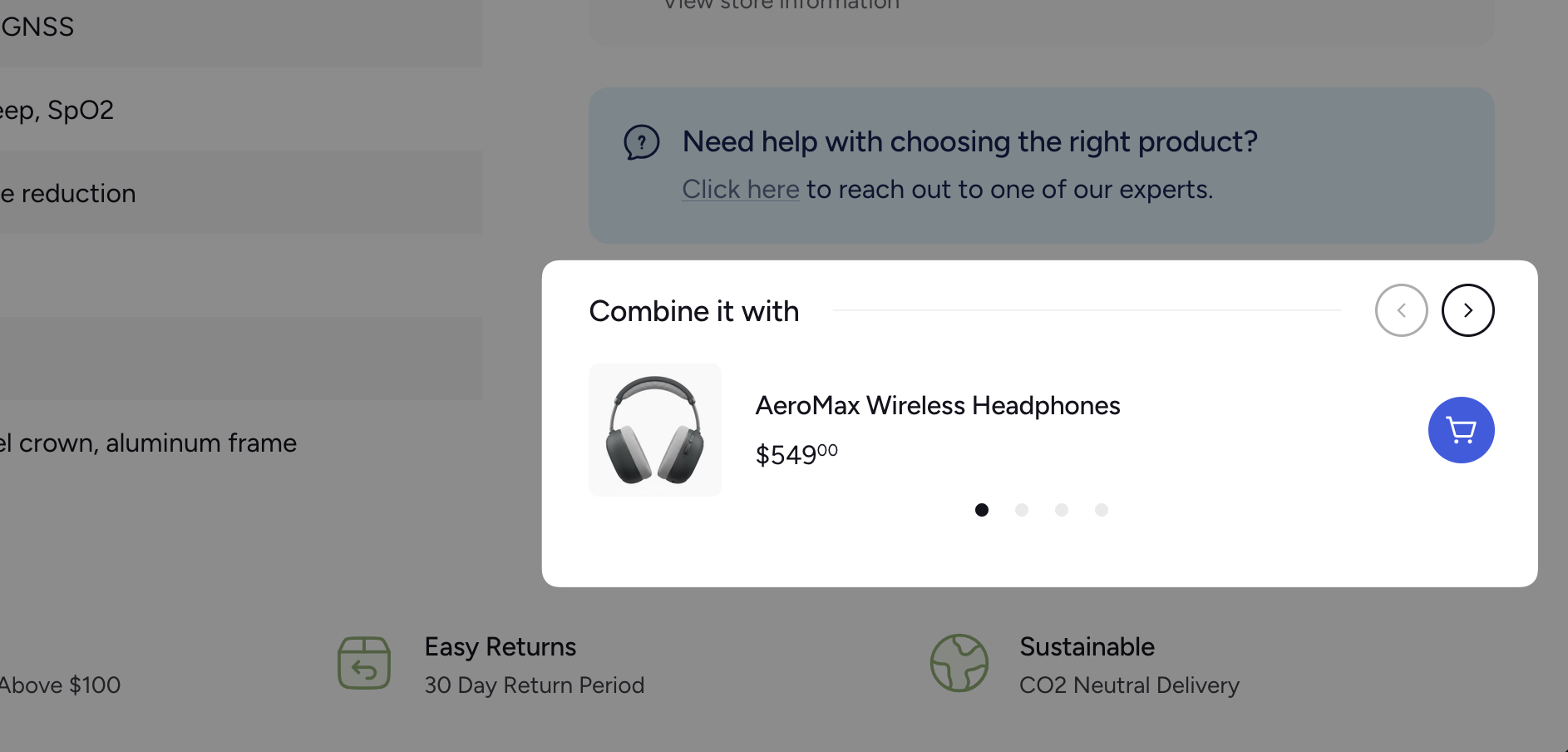
The Complementary Products block displays complementary products on your product pages, encouraging customers to discover and purchase related items.
Prerequisites
- Install the Search & Discovery app from the Shopify App Store.
- Configure your product recommendations within the app. See Shopify's product recommendations guide for details.
Adding the block
Open the Theme editor and navigate to a Product page
In your Shopify admin, go to Online Store > Themes and click Edit theme. Then navigate to a product page.
Add the Complementary Products block
In the Product section, click Add block and select Complementary Products.
Configure the block (optional)
- Heading — customize the section title.
- Maximum products — set the maximum number of products to display.
- Carousel — when enabled, products display one at a time with navigation arrows. When disabled, all products display in a vertical stack.
Save
Click Save to publish your changes.