Products
Product badges
Learn how to configure and display product badges on product cards and product pages
The Product Badges feature lets you add customizable badges to product cards and product pages. Badges are powered by Shopify metaobjects, giving you full control over each badge's label and color.
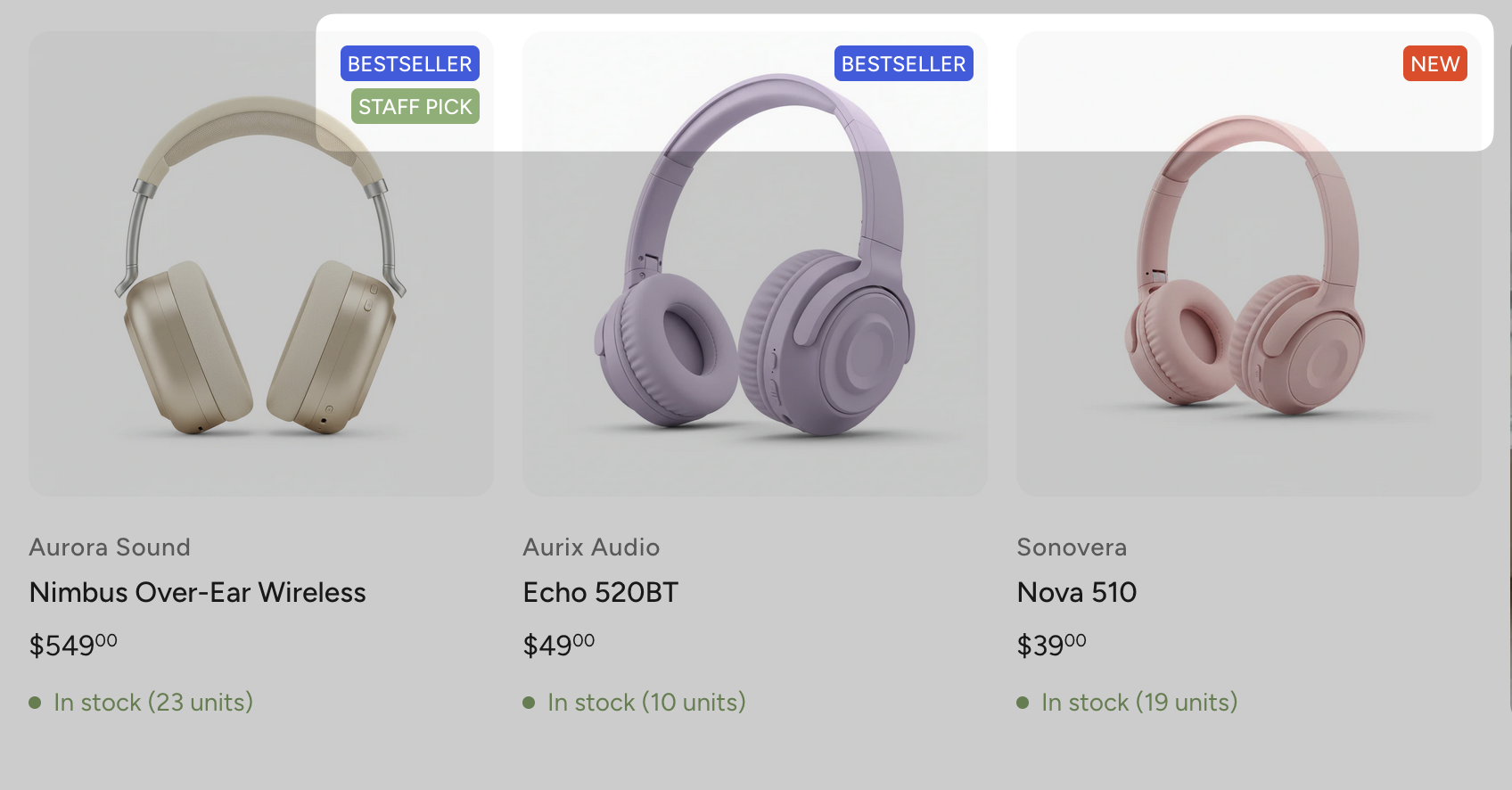
Setting up Product Badges
Product badges require two pieces of custom data: a metaobject definition that describes what a badge looks like (label and color), and a product metafield that assigns badges to individual products.
Create the badge metaobject
- In your Shopify admin, go to Settings > Metafields and metaobjects.
- Scroll down to Metaobject definitions and click Add definition.
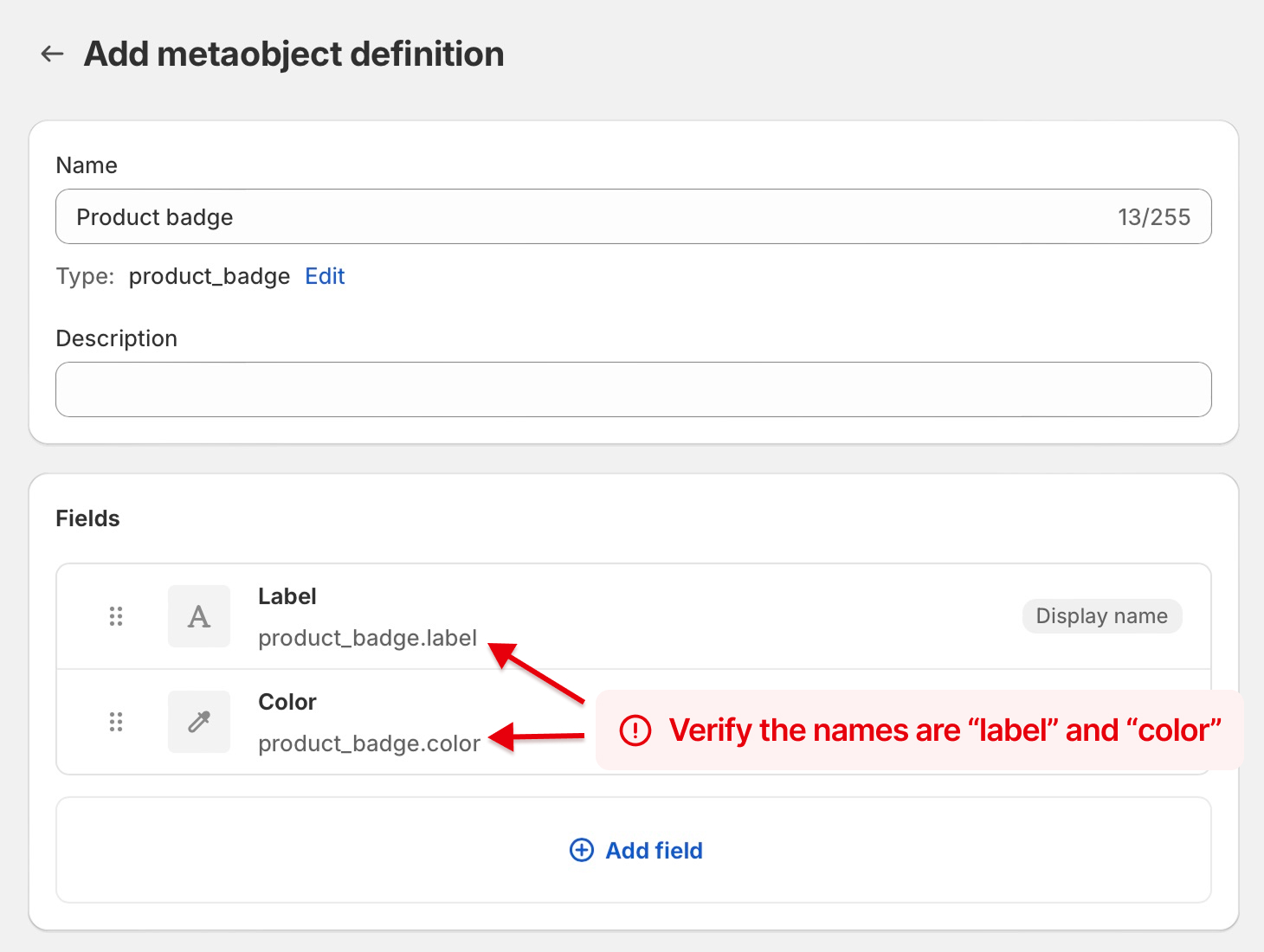
- Add the following two fields — the names must match exactly:
- Label — Single line text
- Color — Color
- Click Save.
Create the product metafield
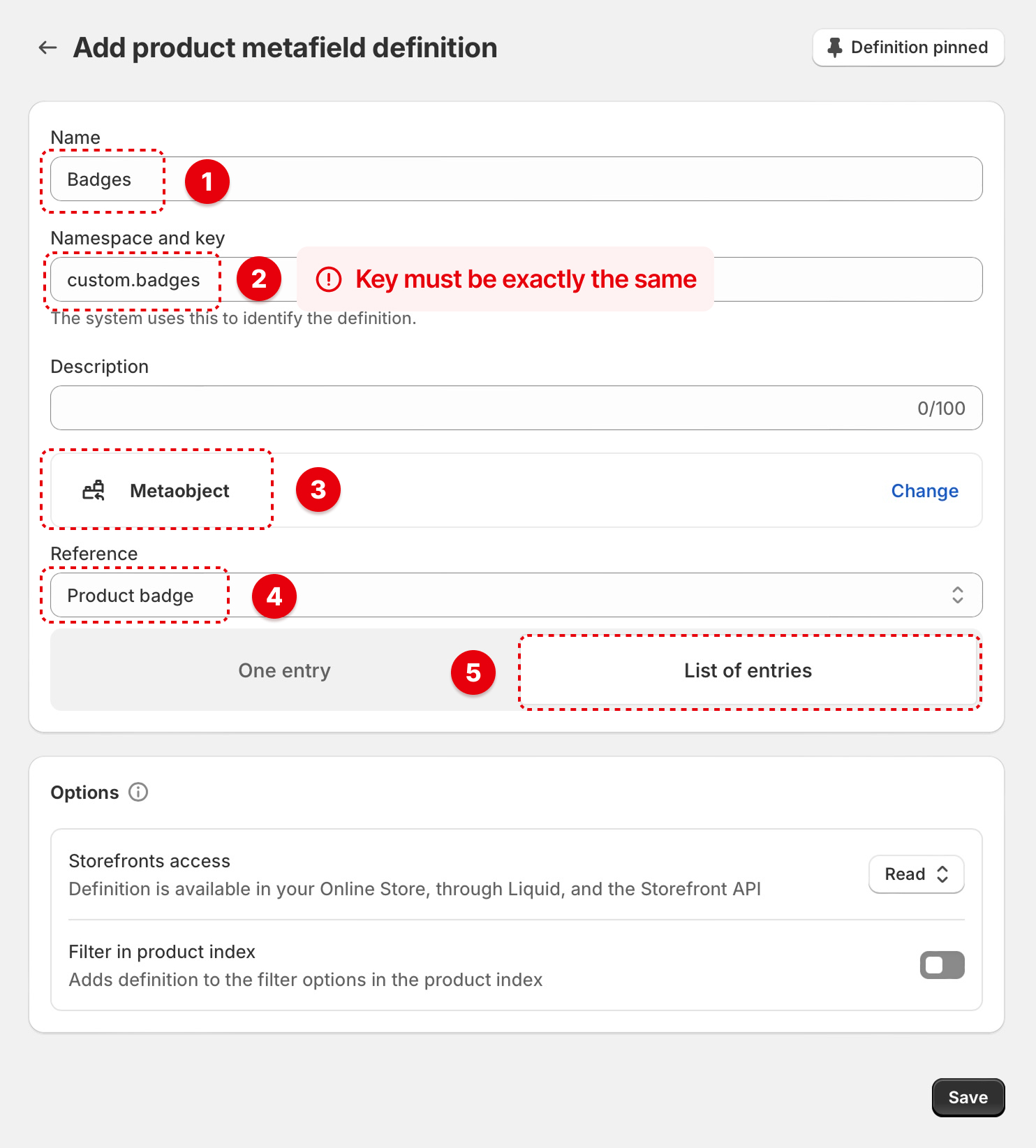
- Go back to Settings > Metafields and metaobjects > Products and click Add definition.
- Set the type to Metaobject and select the badge metaobject you just created.
- Enable List of entries so you can assign multiple badges to a single product.
- Click Save.
Assigning badges to a product
Once the custom data is in place, you can assign badges to any product.
- In your Shopify admin, open the product you want to add badges to.
- Scroll down to Metafields and click the input next to your badges field.
- Select an existing badge or create a new one with your desired label and color.
- Click Save.